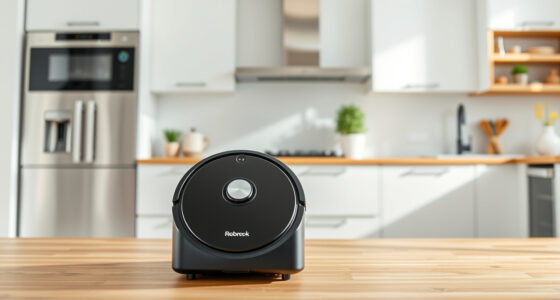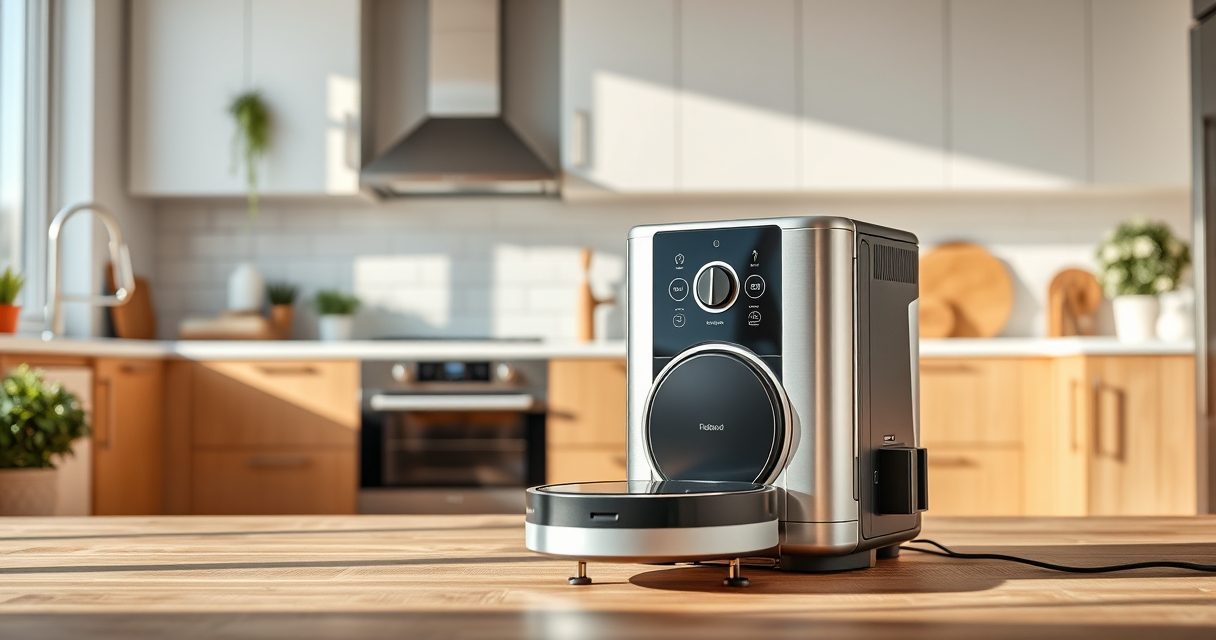
If your Roborock Q7 M5+ robot vacuum isn’t connecting to Wi-Fi, it can hinder your ability to control and schedule cleaning sessions remotely. Fortunately, most connectivity issues are fixable with simple troubleshooting steps. This guide provides clear, practical instructions to help you restore your vacuum’s Wi-Fi connection efficiently and safely.

Get cleaning gear delivered free with Prime
- Fast, free delivery on millions of items
- Prime Video, Amazon Music and more included
- Member-only deals all year
Before starting, ensure your Wi-Fi network is functioning properly, and your smartphone or tablet has the latest app updates. Follow these steps carefully to diagnose and solve common connection problems.
Key Takeaways
| Check network compatibility | Ensure your Wi-Fi network is 2.4GHz and not 5GHz, as Roborock devices typically connect to 2.4GHz bands. |
| Restart devices | Reboot your robot vacuum, Wi-Fi router, and smartphone to clear temporary glitches. |
| Update firmware and app | Make sure both the Roborock app and vacuum firmware are up to date for optimal compatibility. |
| Reset Wi-Fi settings | Reconfigure Wi-Fi on your vacuum if it’s stuck in an unresponsive state. |
| Check signal strength | Position your router closer to the vacuum or remove interference for a stronger signal. |
Ensure Your Wi-Fi Network is Compatible
- Verify your Wi-Fi is operating on the 2.4GHz band, as Roborock robots typically do not connect to 5GHz networks.
- Check your router settings to confirm the band and security protocols are compatible with your device.
Restart Your Devices
- Turn off your Roborock vacuum and unplug your Wi-Fi router. Wait for about 30 seconds.
- Plug in and turn on the router, then power up your vacuum.
- Restart your smartphone or tablet as well.
Reconnect the Vacuum to Wi-Fi
- Open the Roborock app and select your device.
- Go to device settings and choose ‘Wi-Fi Settings’.
- Select your Wi-Fi network, enter the password, and attempt to reconnect.
Check Signal Strength and Interference
- Ensure your router is placed in a central, unobstructed location.
- Avoid placing the vacuum far from the router or behind thick furniture.
- Use a Wi-Fi analyzer app to confirm a strong signal at the vacuum’s location.
Update Firmware and App
- Update the Roborock app to the latest version from your app store.
- In the app, check for firmware updates for your vacuum and install if available.
The Products in This Guide

roborock Q7 M5+ Robot Vacuum and Mop
- ✔ Model: Q7 M5+
- ✔ Connectivity: Wi-Fi 2.4GHz
- ✔ Dust Capacity: 2.7L sealed bag

4 Pack Washable Filter
- ✔ Type: HEPA filter
- ✔ Reusable: Yes
- ✔ Pack: 4-pack
roborock Q7 M5+ Robot Vacuum and Mop
The Roborock Q7 M5+ Robot Vacuum and Mop offers up to 7-9 weeks of self-emptying convenience, with strong Wi-Fi capabilities. Its PreciSense LiDAR navigation and app control make it a top choice for smart home integration.
Pros:
- Long-lasting self-emptying system
- Powerful 10000Pa suction
- Advanced navigation with PreciSense LiDAR
- Dual Anti-Tangle System
Cons:
- Higher price point
- Requires stable Wi-Fi for full features
- Setup can be technical for beginners
Best for: Homeowners seeking a reliable, feature-rich robot vacuum with excellent Wi-Fi performance
Not ideal for: Users with unstable Wi-Fi networks or limited technical experience
Bottom line: A powerful, self-emptying vacuum with solid Wi-Fi connectivity for smart home users.
4 Pack Washable Filter
This 4-pack washable HEPA filters are compatible with several Roborock models including Q7 and Q5 Pro, helping maintain strong suction and clean air quality.
Pros:
- Replaces OEM filters effectively
- Washable and reusable
- Keeps vacuum performing at its best
- Easy to install
Cons:
- Must be washed regularly
- Not OEM, so check compatibility
- Replacement frequency every 1-3 months
Best for: Maintaining peak filtration performance in your Roborock vacuum
Not ideal for: If you prefer OEM parts or have a different model not listed
Bottom line: A cost-effective way to keep your vacuum’s filtration system in top shape.
Frequently Asked Questions
Why won’t my Roborock connect to Wi-Fi?
Common reasons include incompatible Wi-Fi bands, weak signal, outdated app or firmware, or interference. Follow troubleshooting steps to resolve these issues.
Should I reset my Wi-Fi settings on the vacuum?
Yes, resetting Wi-Fi settings can help if the vacuum is stuck trying to connect or if previous credentials are causing issues.
Can I connect my Roborock to a 5GHz Wi-Fi network?
Most Roborock models, including the Q7 M5+, connect only to 2.4GHz networks. Check your router settings to ensure compatibility.
How do I update the vacuum’s firmware?
Open the Roborock app, select your device, go to settings, and check for firmware updates. Follow prompts to complete the update.
Getting Your Roborock Back Online
By following these straightforward troubleshooting steps, you can resolve most Wi-Fi connection issues with your Roborock Q7 M5+. Ensuring your network is compatible, devices are restarted, and software is up to date will usually restore smooth connectivity. If problems persist, consider checking your router settings or contacting support for further assistance. A well-connected vacuum will provide optimal cleaning performance and remote control convenience.
Affiliate disclosure: As an Amazon Associate we earn from qualifying purchases. Prices and availability are accurate as of the time of publishing.
Halloween Picks
halloween
As an affiliate, we earn on qualifying purchases.